MapWise Tutorial
The following tutorial explains the main functions of the MapWise Map Viewer. Please contact us if you have any questions.
- Advanced Parcels Search
- Parcel Search Results
- Parcel Details
- Find Address
- Select Map Layers
- Zoom Bar
- Pan Map
- Map Navigation Controls
- Identify Feature
- Identify Feature Popup
- Parcel Info
- Select Parcels on the Map
- Drawing Tools
- Measure Length or Area
- Map Legend
- Print Map
- Download Map Image
- Long/Lat coordinates
- Additional Information
MapWise Overview Video (27min w/ chapters)
See MapWise YouTube channel for more videos
Parcels Search, Search Results, and Property Details tabs
Parcels Search
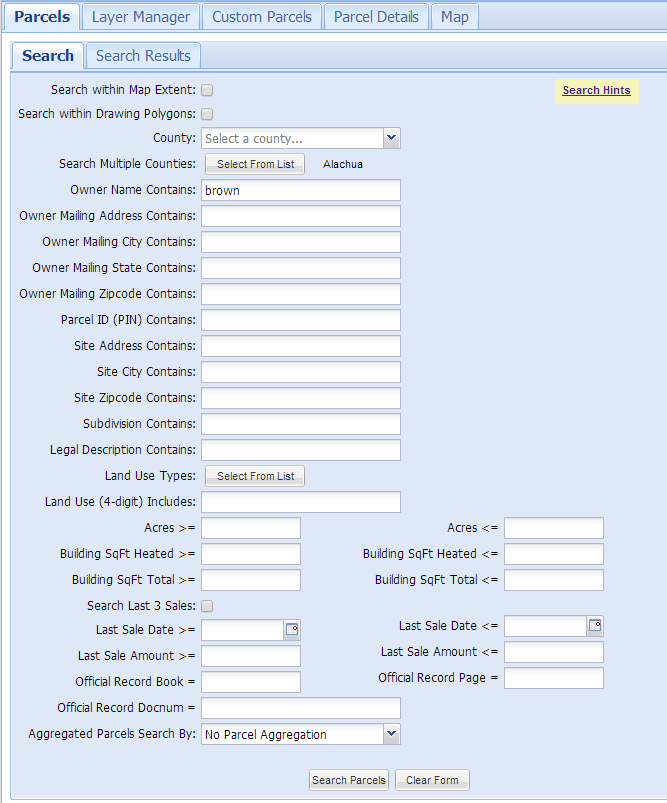
The Parcels Search tab provides many options for searching on property appraiser parcel data. Any option selected is combined with other selected options. If you do not get search results, remove some search options.
The following sections describe and/or provide notes for each search option in the Parcels Search tab.
Search Within Mapextent
- This limits parcels searched to the current map area shown in the Map tab.
Search within Drawing Polygons
- This limits parcels searched to a polygon created using the Drawing Tools.
- The polygon must either be from an existing drawing project or saved to a new project before this will work.
County
- Select a county to limit the search to.
- Selecting a county to search within will make searches go much faster than selecting in multiple counties or the whole state.
- Aggregate parcel searches go much faster when searching multiple counties or the whole state.
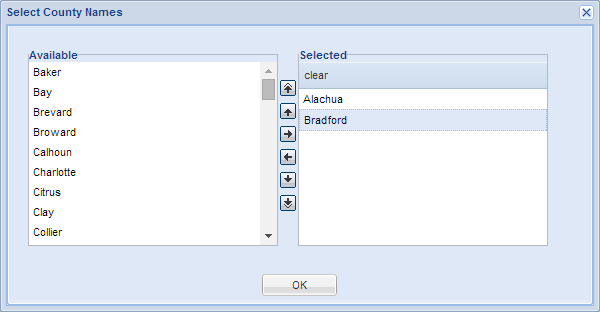
Search Multiple Counties
- Select one or more counties to limit the search to.
- The more counties you select and the more parcels each county contains, the slower the search will be.
Owner Name Contains
- Owner name formats vary between counties, i.e. lastname firstname OR firstname lastname
- You can enter a partial owner name.
- Capitalization and punctuation are ignored.
- If you are having trouble finding an owner name, try entering less information, i.e. a partial name or trying reversing lastname firstname.
Owner Mailing Address Contains
- Owner mailing address is just the address portion, not the city/state/zip code.
- You can enter a partial owner mailing address.
- Capitalization and punctuation are ignored.
- If you are having trouble finding an owner mailing address, try entering less information, i.e. a partial address.
Owner Mailing City Contains
- Less is more - if you do not find the city, try less characters.
Owner Mailing State Contains
- States are abbreviated.
Owner Mailing Zip code Contains
- You can enter a comma delimited list of zip codes.
- You can enter a partial zip code.
Parcel ID (PIN) Contains
- PIN and ALTKEY are searched.
- You can enter a partial parcel ID.
- If you are having trouble finding a PIN, zoom in to a small area of the county you are searching in. Then use the "i tool" to click on a parcel. Inspect the PIN format, and make sure you are searching using the correct format, i.e. some counties include dashes in the PIN and others don't. In addition, Section / Township / Range info is sometimes re-ordered in the PIN.
Site Address Contains
- Less is more - try entering just the street name with no prefixes, etc if you are having trouble finding a street.
- Do not enter a city, state or zip code.
- Prefix directions are abbreviated, i.e. N.
- Capitalization and punctuation are ignored.
- Vacant land may or may not be addressed, it varies by county.
Site City Contains
- You can enter a partial city name.
Site Zip code Contains
- You can enter a comma delimited list of zip codes.
- You can enter a partial zip code.
Subdivision Contains
- Not all counties have searchable subdivision names.
- Less is more - try not to be too specific at first.
- You can enter a partial subdivision name.
Legal Description Contains
- Enter a partial legal, the shorter the better.
- Formatting of a legal description can vary.
- You can usually find subdivisions by searching the legal for subdivision names.
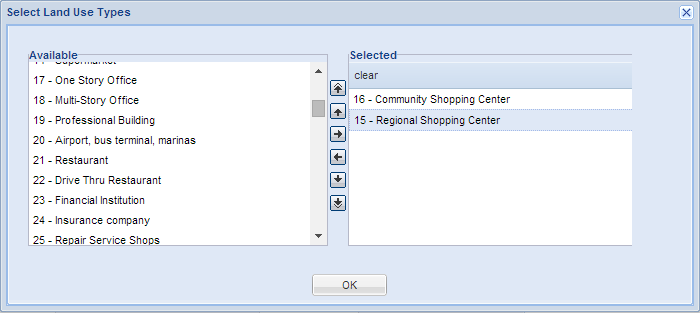
Land Use Types
- This is the two-digit FDOR standard version of land use codes that are assigned to each parcel as the primary land use and available statewide.
- Multiple land use codes can be selected.
Land Use (4-digit) Includes
- This is the four-digit land use codes that are assigned to each parcel as the primary land use.
- You can enter a comma delimited list of land use codes.
- Four-digit codes are not available in every county.
- The number of codes and description of each code varies widely between counties.
Aggregate Parcels Search By
- No Parcel Aggregation: This option searches the normal parcel database.
- Three additional versions of parcels are available to search which have been aggregated in different ways. The purpose for aggregated parcel data is to quickly identify and search large tracts of land consisting of multiple parcels. The aggregated parcel data only contains parcels over 9 acres. The aggregation is done by county.
- Sale Transaction = Aggregated by book / page or docnum. Don't use this to search for individual sales.
- Owner Name - Disaggregate - Aggregated by owner name, where contiguous parcels are aggregated, but other tracts with the same owner within the county are treated as separate entities.
- Owner Name - Aggregated by owner name county-wide.
Parcel Search Results
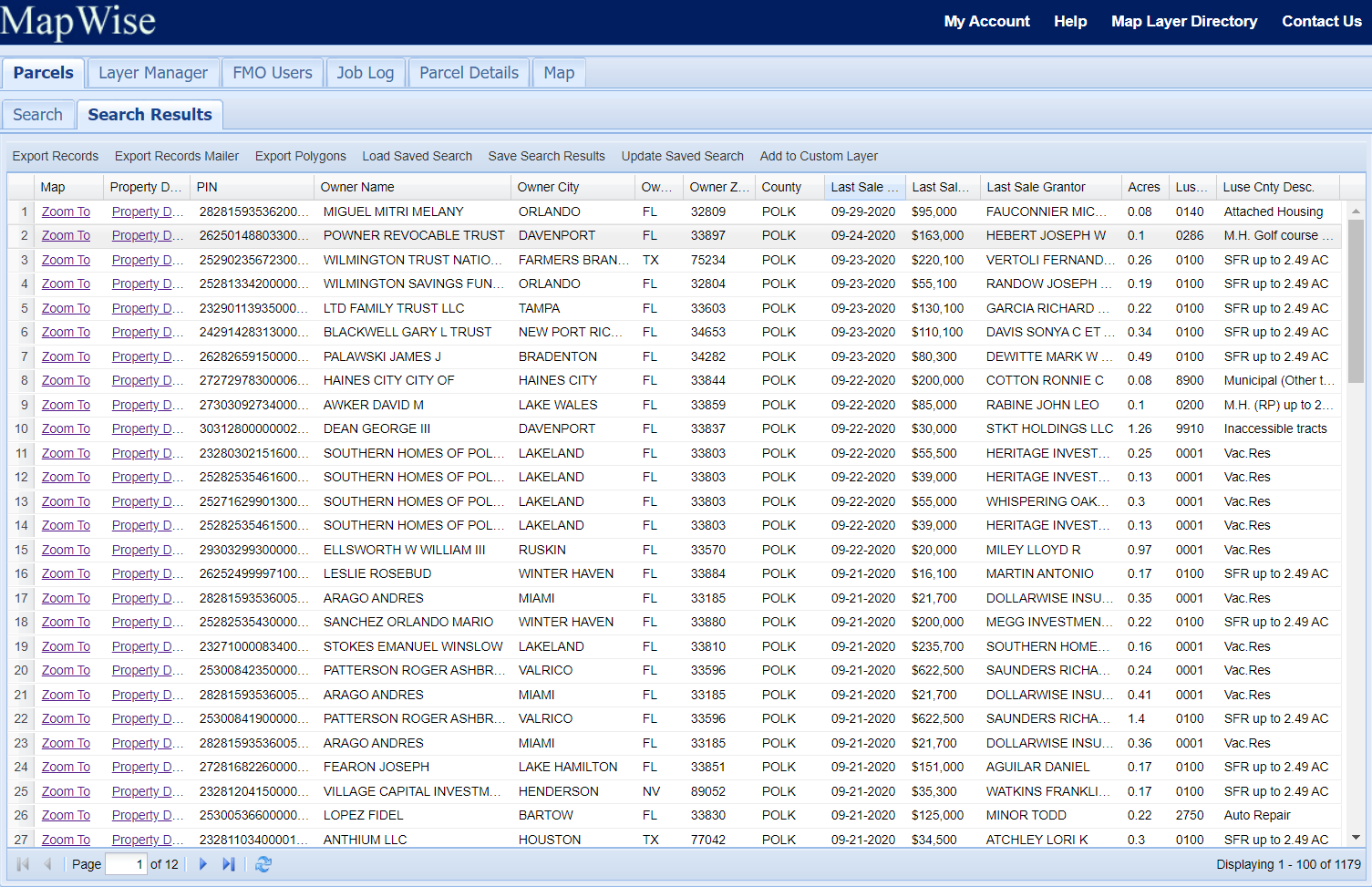
Search Results Notes
- Click "Zoom To" to zoom to a parcel.
- Click "Parcel Details" to see a parcel details report.
- Click the column title to sort the results by column.
- Click the arrow at the right of the column title to show a menu that provides additional column display options.
Export Records
- Export selected records to a tab-delimited text file or Excel file.
- Over 120 columns of parcel information including owner name, mailing address, site address, recent sales, building info, legal and more.
- Corporation and corporate officer name and mailing are attached to each parcel where available.
- 50,000 record maximum per export.
Load Saved Search
- Load a Saved Search from a set of records previously selected and saved to a named Saved Search.
Save Search Results
- Save the selected records to a named Saved Search record set. This can be loaded at any time later.
Update Saved Search
- Add selected records to a named Saved Search record set.
Parcel Details


- For some counties, the PIN is a link to the parcel record on county Property Appraiser website.
- For some counties, the sale Book / Page or Docnum is a link to the official records document on the County Clerk of Courts website.
Tabs to the left of the map
Map Layers

- More than 50 different map layers are available.
- The Map Layer Directory provides information describing the different map layers.
- You can create a wide variety of map combinations.
- Check the map layer on to turn it on.
- You can view one Base Layer at a time.
- Some map layers take a few seconds to draw.
- Some map layers are not available in all areas of Florida.
- Many map layers are visible only when zoomed in past 1:54K.
- Map layers draw from bottom to top.
Map Legend

Click the Legend tab to display the map legend. You may need to scroll down to see the full legend.
Search Results
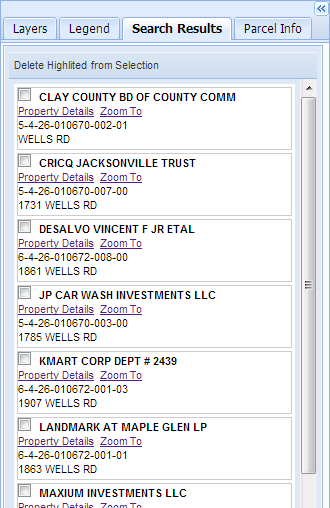
Search results are displayed to the left of the map as well as in the Search Results tab under the Parcels tab. You can select results to delete from the selected set by clicking the checkbox next to each result. The selected parcels will highlight in red. Click "Delete Highlighted from Selection to remove them from the selected set.
Parcel Info

Clicking the Property Details link in the i-tool popup menu opens the Parcel Info tab.
View owner name, owner address, parcel ID, street address, last three sales, appraised values, land use type, acres, and more.
Pan / zoom bar in upper left corner of map
Zoom Bar
- The top of the zoom bar is the closest zoom.
- Click the + icon to zoom and and the - icon to zoom out.
- Zoom multiple levels by clicking in the bar.
Pan Map
- Click an arrow to pan the map in that direction.
- Good for making slight adjustments to viewing area.
Toolbar icons above the map
Map Navigation Controls
 Zoom In and Recenter
Click and drag a box on the map to zoom into a specific area. Or click on the map to zoom in and recenter the map on the location you clicked.
 Zoom Out
When you click in the map, the map will zoom out a factor of 2x.
 Pan
Pan
When you click in the map, you can hold the mouse down to drag the map. It will recenter where you let go.
 Go Back
Return to previous map extent.
 Go Forward
Go forward to last map extent after using the Go Back tool. This tool will not be usable until the "Go Back" tool is used. Back to top
 Zoom to GPS Location
If you have an iPad or tablet with a built-in GPS, clicking this icon will zoom the map to your current location and follow you as you move. Back to top
 Identify Feature ("i tool")

- Some map layers can be queried by clicking on the map to get information at that location.
- A popup window will show with information from any queryable layer that is turned on.
- Queryable layers include: Parcels, Future Land Use, Zoning, City Limits, FEMA Flood Zones, Land Cover, and Soils.
Identify Feature Popup
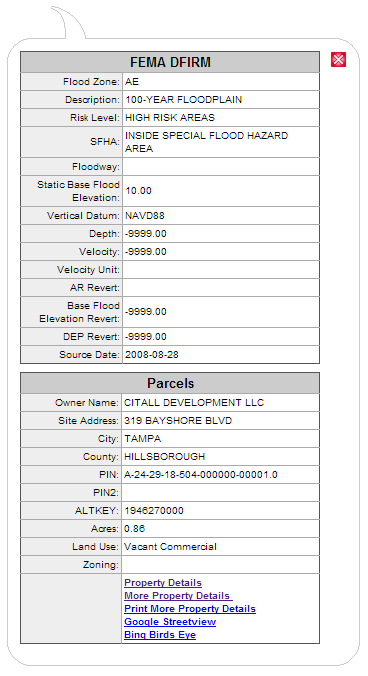
- When you select the "i tool" and click on the map, a popup appears.
- Click on a parcel and see owner name, parcel ID, street address, land use type, acres, and more.
- The popup results will vary depending on the map layers that are checked on in the Map Layers tab.
- The Property Details link shows additional info in the Parcel Info tab to the left of the map.
 Select Parcels on Map by Point, Line, or Polygon


- Click on the map to define an area (polygon) to select parcels.
- A minimum of three click locations are needed to define and area.
- Double-click to end the line.
- The selected parcels will highlight on the map and the associated records will display in the Search Results menu.
- You can use the selected parcels to create a custom boundary.
- The custom boundary can be saved and becomes part of the Custom Boundaries map layer.
 Drawing Tools

Save / Load Projects

- You can save drawings to individual projects.
- A project can be in a personal or group folder.
- The group folder is for companies with multiple subscribers.
- The features are only visible to an individual or company group.
Draw Modes
The drawing tool has two "draw modes". When it first starts, its in modify feature mode. If you load a project with features, you can click on a feature to select it and a modify feature menu is shown. The feature can also be moved or reshaped.
Add Features

Select either the point, label, line, or polygon icon, then click in the map to add the feature.
Modify Features
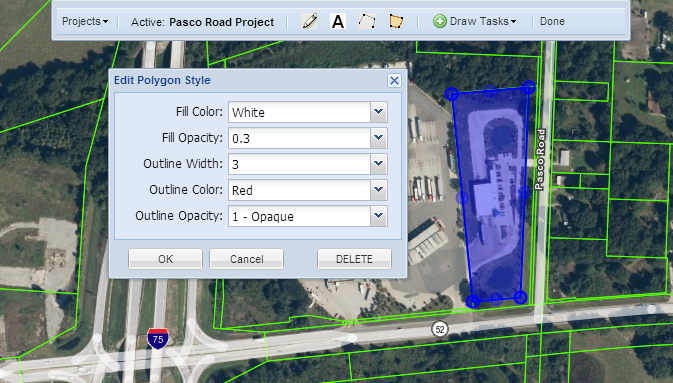
Click on the feature to modify. A dialog box will popup with additional
options to change color, size, etc. Each drawing feature can be individually styled.
Move / Reshape Features
Click on the feature to modify.
To move a feature, click-drag. To reshape a line or polygon,
click the feature and click on one of the handles. Click in the center of a line segment to add another vertice.
Delete Features
Click on the feature to modify, then click the DELETE button in the edit style window to delete it.
Measure Length or Area
 Measure Length
- When you click in the map you can measure distance of one or more line segments.
- You can click several times to define an irregularly shaped line.
- Double-click to end the line.
- The total distance is displayed in feet when zoomed in or miles if zoomed out.
 Measure Area
- When you click in the map you can measure distance of an area.
- You can click several times to define the area to measure (polygon).
- Double-click to end the line.
- The total area is displayed in square feet and acres when zoomed in or square miles if zoomed out.
 Print Map

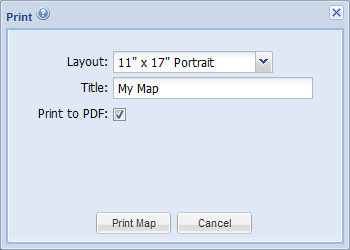
- You cannot print the OpenStreetMap base layers. Please choose a MapWise or aerial base layer instead.
- Create an unlimited number and variety of maps.
- Print maps for reports.
- Print maps to take with you on the road.
- A map with aerials may take 60+ seconds to generate.
- Once the image is generated it may take 60+ seconds to load in the browser.
- Map images are generated at an image size equivalent to 150 dpi. When printed, the map image resolution will be 150 dpi.
- Remember to set the proper page orientation and page size in your printer settings.
Adjust Printable Area
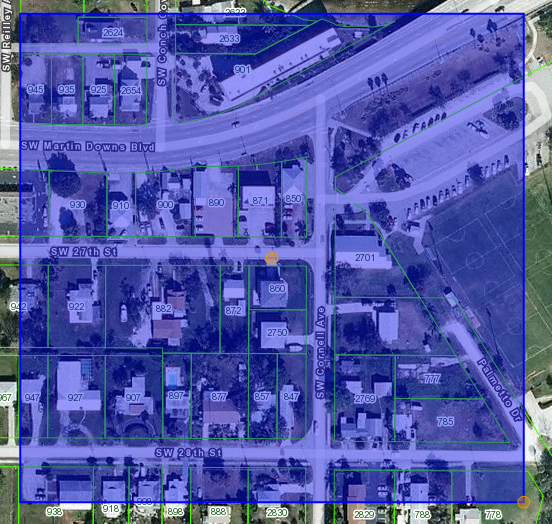
- After you select the print layout, an orange transparent box will appear on the map.
- The box shows the map area that will be printed.
- To adjust the print area, first click in the box and it will highlight blue.
- To move the box, click-drag the orange circle in the middle of the box.
- To resize the box, click-drag the orange circle on the lower right corner of the box.
- The box conforms to the aspect ratio of the map layout you select.
 Download Map Image

The download image tool is very flexible and may take some experimentation to get the output you are looking for. When creating a map, there are three main variables that control the size and detail of the map.
- Map Area - the geographic extent of the map
- Map Scale - the level of map detail, i.e. how far zoomed in or out the map is.
- Map Size - the physical size of the map.
The Download Image tool can generate maps that are optimized for on-screen display or for printed output.
General Notes:
- You cannot print the OpenStreetMap base layers. Please choose a MapWise or aerial base layer instead.
- The download image tool generates an image that you can save and use elsewhere.
- The Image DPI controls the symbology size, not the image size.
- Symbology at 150dpi or 300dpi will appear too big when viewed on the screen, but when printed at the same resolution, it will look correct.
- An image with aerials may take 60+ seconds to generate.
- Once the image is generated it may take 60+ seconds to load in the browser.
- Images up to 9000 x 9000 pixels have been tested.
Export for Software
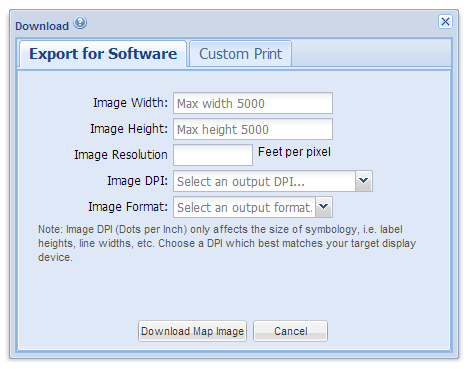
- If you adjust the image resolution, the Image Width and Height will be adjusted accordingly.
Custom Print
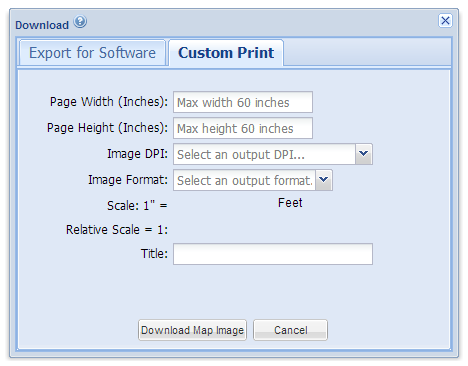
- Use this tool to create custom page sizes to be printed.
Find Address
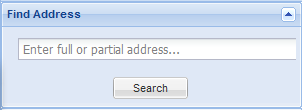
- Enter all or part of an address and click Search.
- A red marker is placed at the address location.
- Addresses are either placed in the center of a parcel, or along a street.
Long/Lat Coordinates
Coordinates are shown where your mouse is located.
Data Sources
All aerial photography and map layer data is acquired from federal, state, and local government sources. MapWise processes much of the data to make it more useful and easier to use. We also create new layers that are derived from the original data.
Information update frequencies vary between counties. Generally, the larger central and south Florida counties are updated more often than the rural and panhandle counties.
Data Coverage
Some map layers do not cover the entire state. In some areas of the state, either the government has not mapped that area, or we have not yet acquired the information. For more information on what is available where, please consult the Map Layer Directory or contact us.
Map Scale
Some map layers are not available at all map scales. For example, parcel boundaries will not display until you zoom in to a scale of 1:14,000 or closer (i.e. smaller number).
More Information
Please refer to the Map Layer Directory for more information about each map layer available in Florida Maps Online.
Contact Us
Please contact us for more information or requests for additional functionality and map layers. Your needs drive development.


