Parcel Search
MapWise Parcel Search (the Parcels tab in the GIS Map Viewer) finds Florida parcels by owner name, address, parcel ID (PIN), land use, acreage, sale history, and more. Search one county, up to five counties at once, or the entire state, then view matches on the map or export them.
How do I choose a search area?
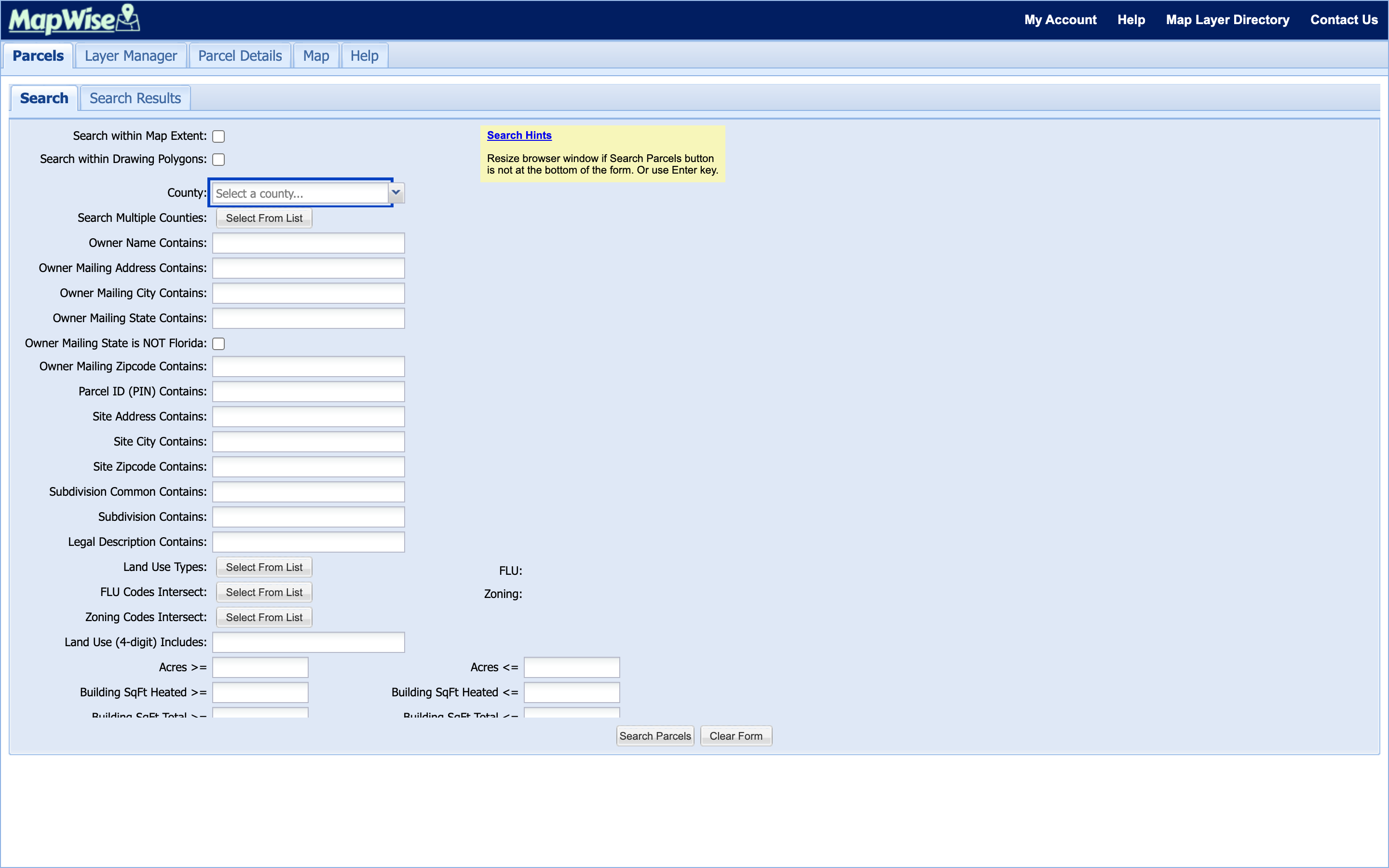
The County dropdown, the multi-county picker, and the two map-based checkboxes work independently. Combine any of them, or leave all four unset to search everything you're allowed to see.
- Pick a single county from the County dropdown, or leave it on "Select a county...". Its first entry, All Counties, searches the whole state and warns "Searching the whole state can take several minutes - are you sure?" before running.
- To search several specific counties at once, click Select From List next to Search Multiple Counties. The Select County Names window lets you pick up to five counties.
- Check Search within Map Extent to limit results to whatever is currently visible on the map.
- Check Search within Drawing Polygons to limit results to a shape you've drawn. This requires an active drawing project. Without one, MapWise warns "Search within Drawing Polygons requires a saved and active drawing project in the Drawing Tools."
You should now see your chosen area reflected in the form (a county selected, counties queued in the multi-county picker, or a checkbox ticked), ready for the filters below.
How do I search by owner, address, or parcel ID?
- Enter part of a name in Owner Name Contains. Partial names work best: a last name alone often finds more matches than a full name typed exactly as recorded.
- Use Owner Mailing Address Contains, Owner Mailing City Contains, Owner Mailing State Contains, or Owner Mailing Zipcode Contains to filter by where the owner receives mail. Check Owner Mailing State is NOT Florida to find absentee/out-of-state owners.
- Know the parcel already? Enter it in Parcel ID (PIN) Contains.
- Filter by the property's own location with Site Address Contains, Site City Contains, or Site Zipcode Contains. These describe where the parcel sits, not where the owner's mail goes.
- Subdivision Common Contains, Subdivision Contains, and Legal Description Contains narrow results to a specific plat or legal description.
You should now see one or more criteria fields filled in. Combine as many as you like: every field you fill narrows the result set further.
How do I filter by land use, future land use, or zoning?
These are three separate pickers, each opened by its own Select From List button. Picking a value in one doesn't affect the others.
- Land Use Types: click Select From List to open Select Land Use Types, a dual-list picker of Florida DOR land-use codes.
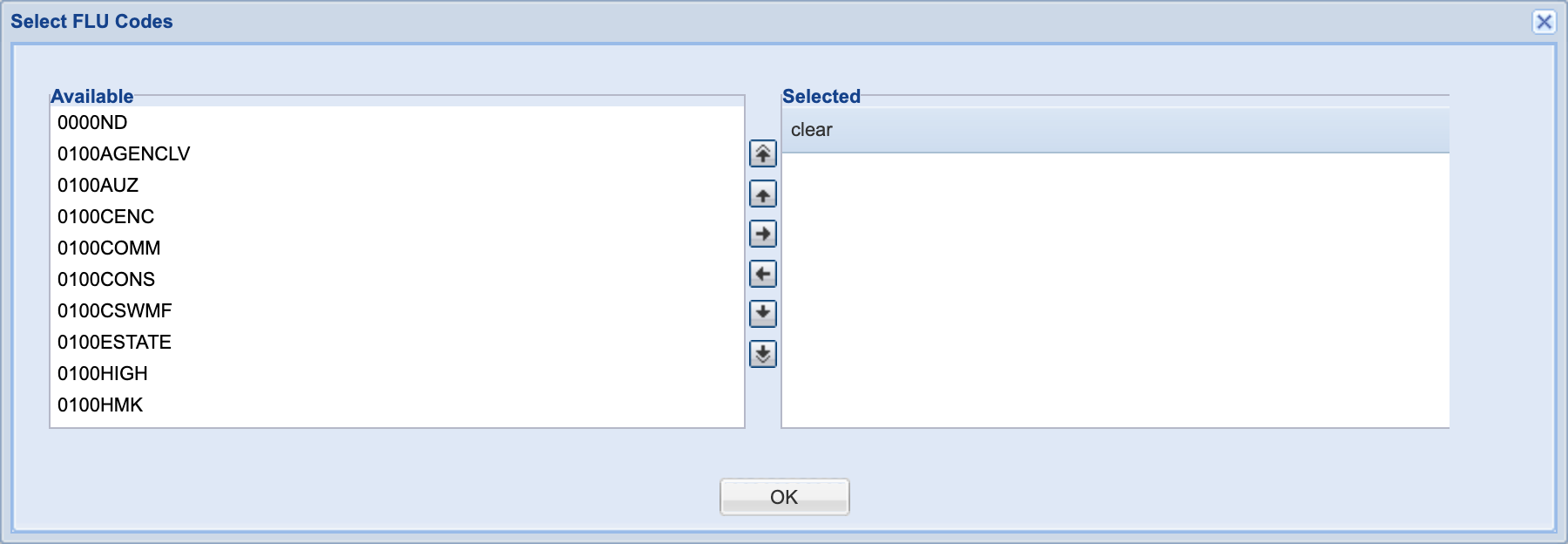
- FLU Codes Intersect: click its Select From List to open Select FLU Codes. This list reloads from the county you selected above, so choose a county first.
- Zoning Codes Intersect: click its Select From List to open Select Zoning Codes, which also reloads per selected county.
- In each window, move codes from Available to Selected using the arrow buttons, then click OK.
- For a numeric shortcut instead, type into Land Use (4-digit) Includes. It is not offered for 11 counties whose land-use codes are two digits only (Broward, Collier, Desoto, Glades, Hernando, Highlands, Levy, Marion, Monroe, Pasco, and Sumter).
You should now see your selected codes listed under each picker's "Selected" column. Close the window and they carry into the search.
How do I filter by acreage, building size, or year built?
- Set a range with Acres >= and Acres <= (e.g. 10–20 acres).
- Building size has three independent ranges: set any or all of Building SqFt Heated, Building SqFt Total, and Building SqFt Adjusted (each with its own >= / <= fields).
- Filter construction date with Year Built Actual or Year Built Effective, each with its own >= / <= range.
You should now see your numeric ranges entered in the fields you filled. Leave any range field blank to leave that side of the range unbounded.
How do I filter by sale date, sale price, or combine parcels by owner?
- Check Search Last 3 Sales to include a parcel's three most recent sales instead of only its latest.
- Set Last Sale Date >= / <= and Last Sale Amount >= / <= to filter by when and how much a parcel last sold.
- Search a specific recorded document with Official Record Book, Official Record Page, or Official Record Docnum.
- To merge results by owner or transaction instead of listing individual parcels, change Aggregated Parcels Search By from its default, No Parcel Aggregation, to Sale Transaction, Owner Name - Disaggregate, or Owner Name. Choosing any of these disables most of the criteria fields above.
You should now see your sale-history filters set, or an aggregation mode chosen if you're grouping parcels by owner.
How do I run the search and see matches on the map?
- Click Search Parcels (or press Enter) to run the query. Click Clear Form at any point to reset every field.
- Matching parcels highlight in yellow on the map. This happens for every search, not just ones that use Search within Drawing Polygons.
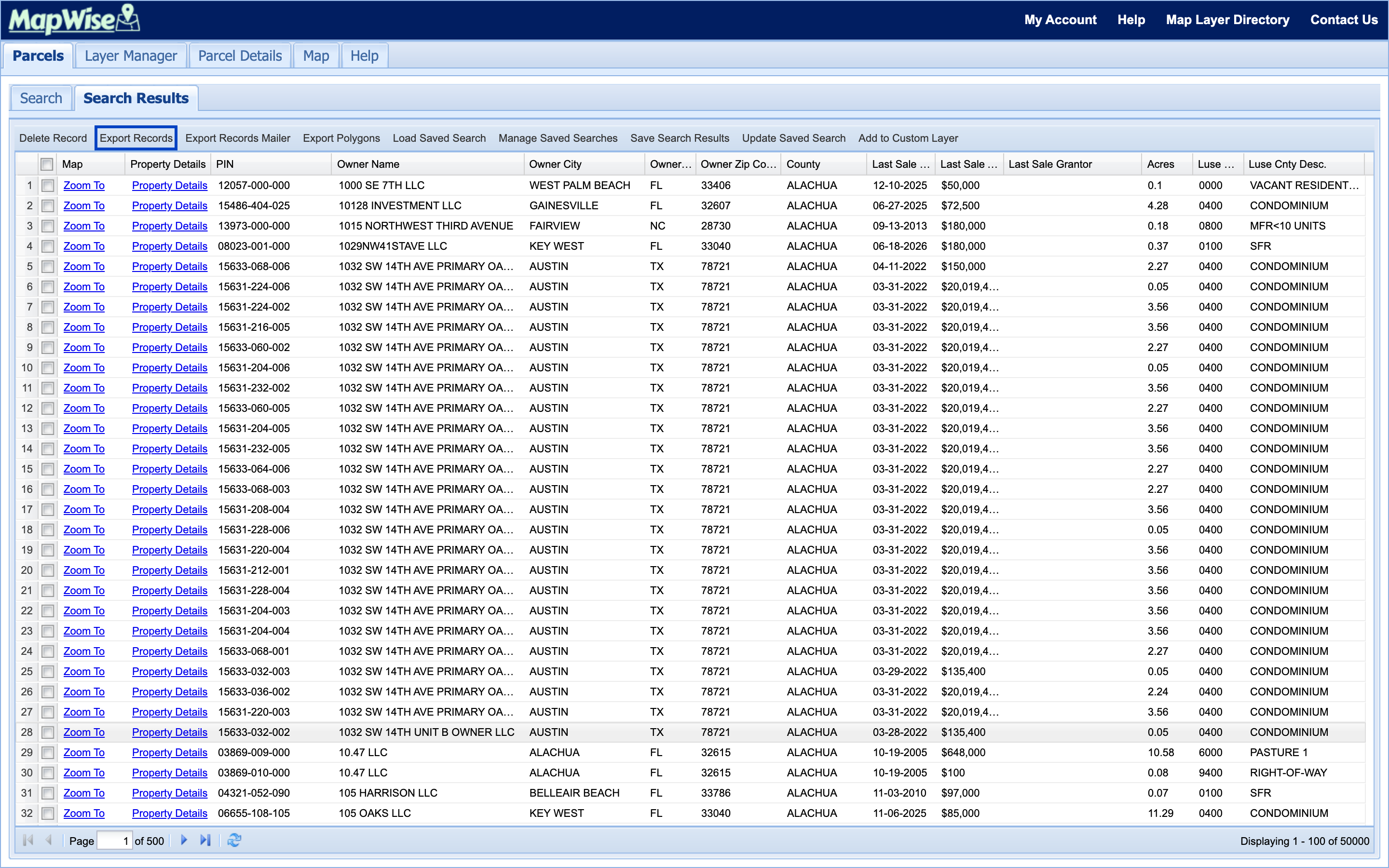
- MapWise switches to the Search Results tab, where the grid shows 100 parcels per page. The paging toolbar at the bottom reads "Displaying 1 - 100 of <total>".
- If nothing matches, MapWise shows "No search results. Try using less specific criteria and/or fewer parameters in the search form."
- Click Zoom To on any row to jump the map to that parcel, or Property Details to open its full record.
You should now see a results grid with yellow-highlighted matches on the map. From here, sort, export, or save the results. See Manage & Export Results.
Search Tips
- Start with fewer criteria, then add filters. An overly specific first search is the most common cause of zero results.
- Partial owner names and addresses match substrings, so "SMITH" finds "SMITH JOHN" and "SMITH-JONES MARY" alike.
- Search within Drawing Polygons needs a saved, active project in Drawing Tools first. Draw and save your shape there before returning to Parcel Search.
- Save a search you'll rerun often. See Manage & Export Results for saving, reloading, and exporting.
Frequently Asked Questions
How do I find a parcel number for a property?
Every row in MapWise's Parcel Search results grid displays its Parcel ID (PIN) directly. No separate lookup step is needed. Open Parcel Search, choose a county, and search by owner name or site address to find the parcel. Click Property Details for the full parcel record, including PIN, owner, and sales history.
What is a parcel number?
A parcel number (also called a Parcel ID or PIN) is the unique identifier a Florida county assigns to a piece of real property. MapWise's Parcel Search lets you search by "Parcel ID (PIN) Contains" directly, or find the same parcel by owner name, address, or map location instead.
How do I search for Florida property by owner name?
Open Parcel Search, select a county (or use Search Multiple Counties for up to five at once), then enter a name in "Owner Name Contains." Partial names work: searching a last name alone often returns more matches than a full name. Click Search Parcels to run the query.
How do I find the owner of a property by address in Florida?
Open Parcel Search, choose the property's county, and enter the street address in "Site Address Contains." Click Search Parcels. The results grid shows the owner name, mailing city, state, and ZIP for each match, plus a Property Details link for the full record. No cost or account tier restricts this search.
Ready to Get Started?
Select a plan, schedule a personalized demo, or contact our support team.