Get Started
Install the MapWise app for iPhone, sign in with the account you use on mapwise.com (or make one in the app), and learn where everything lives.
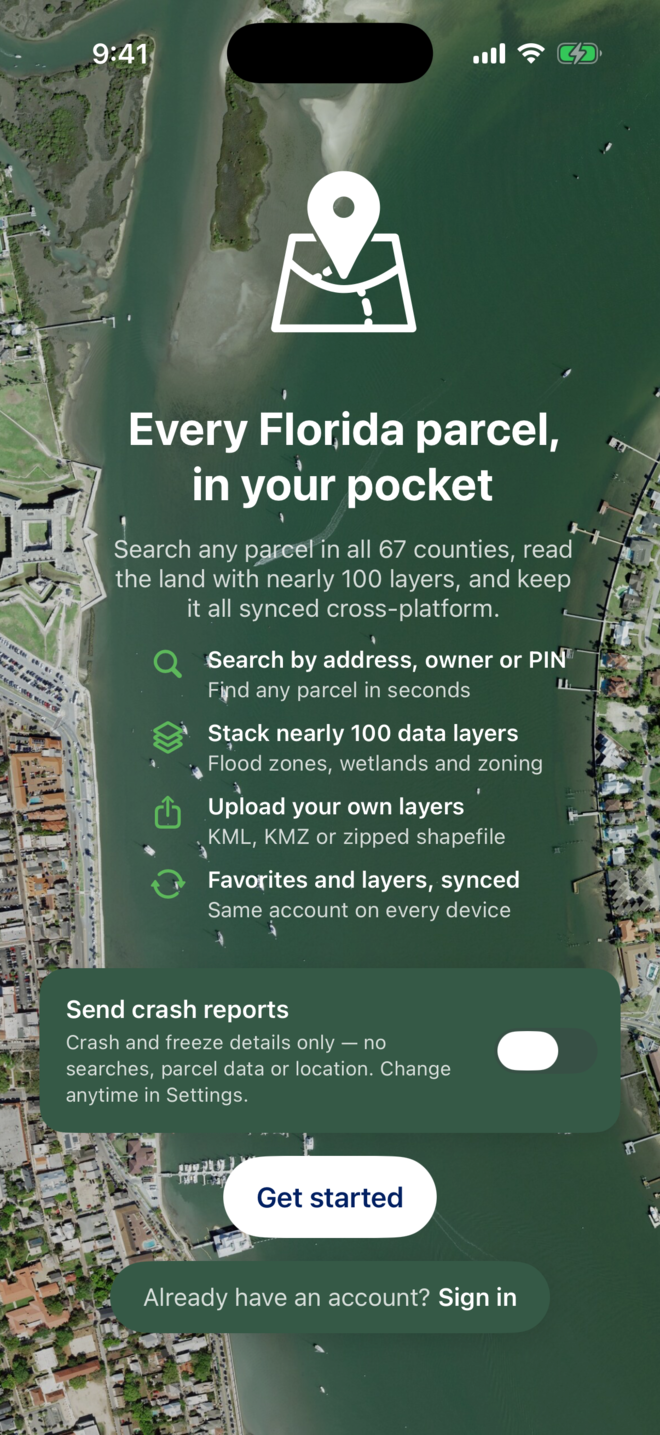
How do I install the MapWise app?
The app is free to install. Searching the map works without an account; owner, value and sales data unlock with MapWise Pro.
- Open the App Store on your iPhone and search for MapWise, or tap the badge on this page. The listing is MapWise: Florida Parcels.
- Tap Get, then open the app. It needs iOS 26 or later.
- On the welcome screen, tap Get started to make a new account, or Already have an account? Sign in if you use mapwise.com.
- Choose whether to Send crash reports. This sends crash and freeze details only, never your searches, parcel data or location, and you can change it later under Account, Privacy.
You should now see the map of Florida with the search sheet at the bottom and four tabs: Search, Favorites, Layers and Account.
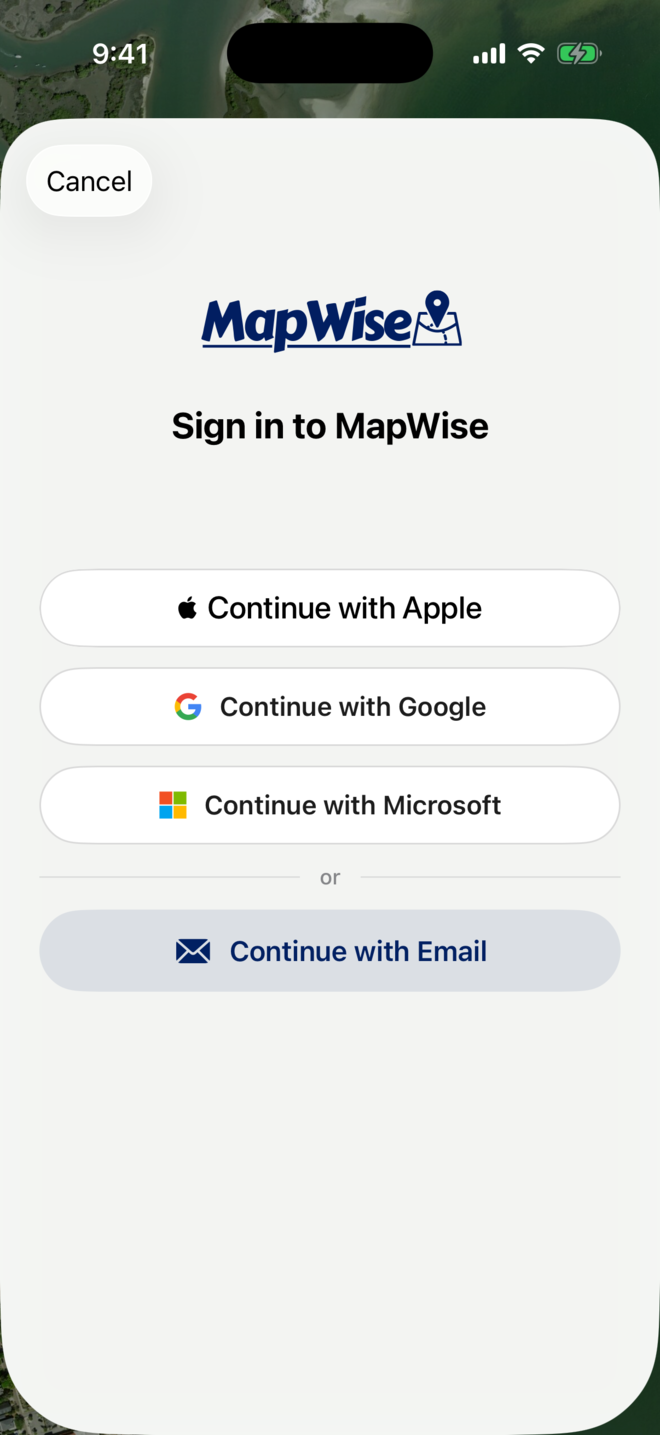
How do I sign in?
- Tap Sign in on the welcome screen, or later tap the Account tab and then Sign In.
- Pick the way you created your MapWise account: Continue with Apple, Continue with Google, Continue with Microsoft, or Continue with Email for an email and password.
- With email, enter the address and password you use on mapwise.com. The app and the website share one account, so your favorites, uploaded layers and subscription come with you.
- Signing in with Apple can hide your email behind an Apple relay address. That is fine: MapWise mail still reaches you through the relay.
You should now see your name and email at the top of the Account tab. If the app says Pro features are locked, see Account and Subscription.
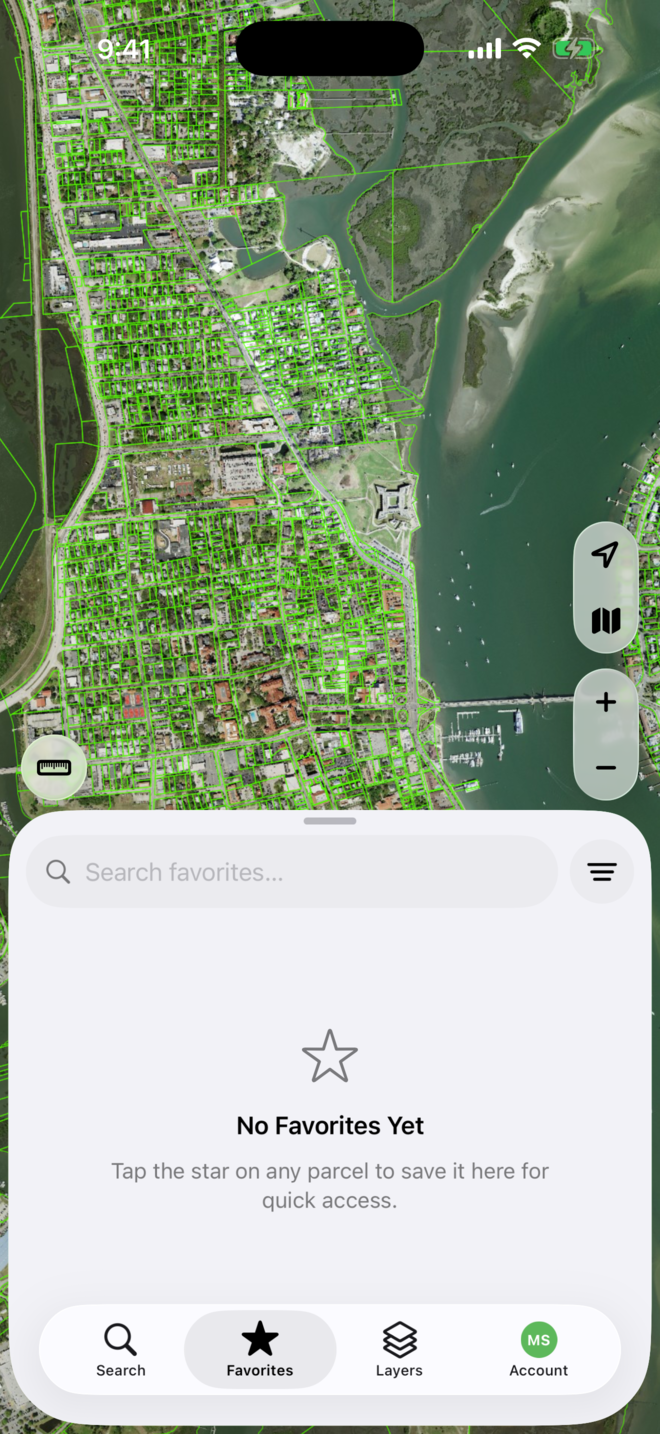
How do I get around the app?
Everything sits in a sheet over the map. Drag the sheet up for more, down for the map.
- Search finds a parcel by address, owner, parcel ID (PIN) or place, and holds the filters. See Search and Filter.
- Favorites lists the parcels you starred, synced with mapwise.com.
- Layers turns map layers on and off, from parcel outlines to flood zones, soils and the layers you uploaded on the web. See Layers and Flood Zones.
- Account holds your profile, billing, privacy settings, appearance, tips and sign out.
- On the map itself: the arrow button centers on your location, the map button switches base maps (aerial, streets, labels), plus and minus zoom, and the ruler on the left starts a measurement. See Measure.
You should now know what each tab does. Tap any parcel on the map to begin: see Parcels on the Map.
Tips
- Allow location when the app asks if you want the map to follow you in the field. Your position is used on the phone only and never leaves your device.
- The app needs a cellular or Wi-Fi connection. Parcel data and aerials load as you move the map.
- Lost? Tap Account, then Show tips again to replay the in-app hints.
Troubleshooting
- The App Store cannot find the app.
- Search for MapWise: Florida Parcels, or use the badge on the MapWise App page. The app needs iOS 26 or later.
- Continue with Apple, Google or Microsoft fails.
- Check your connection and try again. If you created your MapWise account with an email and password, use Continue with Email instead.
- The map is blank, or the app says it could not reach the server.
- The app needs cellular or Wi-Fi; parcels and aerials load as you move. Wait a moment and pan the map again.
- The app asks for location every time.
- Allow it once under iPhone Settings, Privacy & Security, Location Services, MapWise. Location is only used on the phone to center the map.