Layers and Flood Zones
Turn on FEMA flood zones, wetlands, soils, zoning, land use and other layers over the aerial, read the legend, and use the layers you uploaded on mapwise.com.
How do I turn a layer on or off?
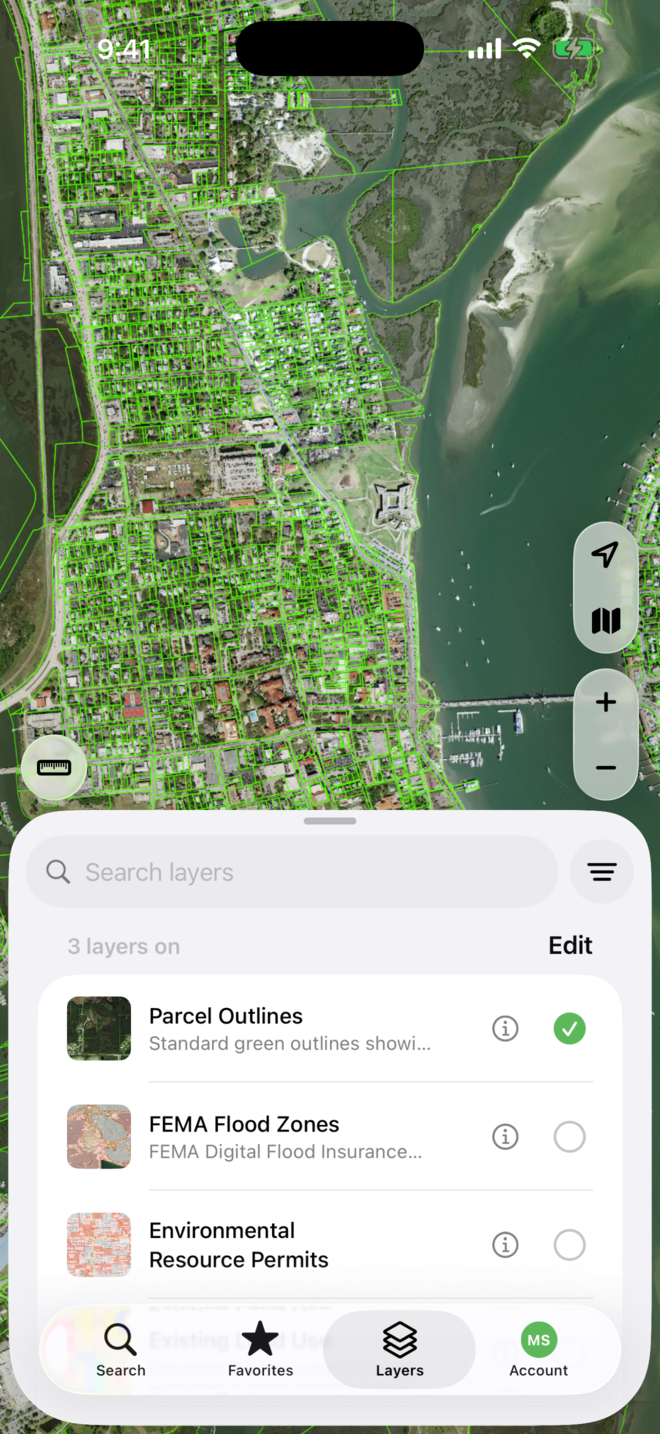
The Layers tab lists the layers already on your map. The count at the top tells you how many are on.
- Tap the Layers tab. Drag the sheet up to see the whole list.
- Tap the circle at the right of a layer to turn it on. A green check means it is on; tap again to turn it off.
- Tap the i next to a layer for its description and, for layers that have one, its legend.
- Tap Edit to reorder layers or remove one from the list. The layer stays available under Add layers.
You should now see the layer drawn over the aerial, and the count at the top of the list updated.
How do I check flood zones?
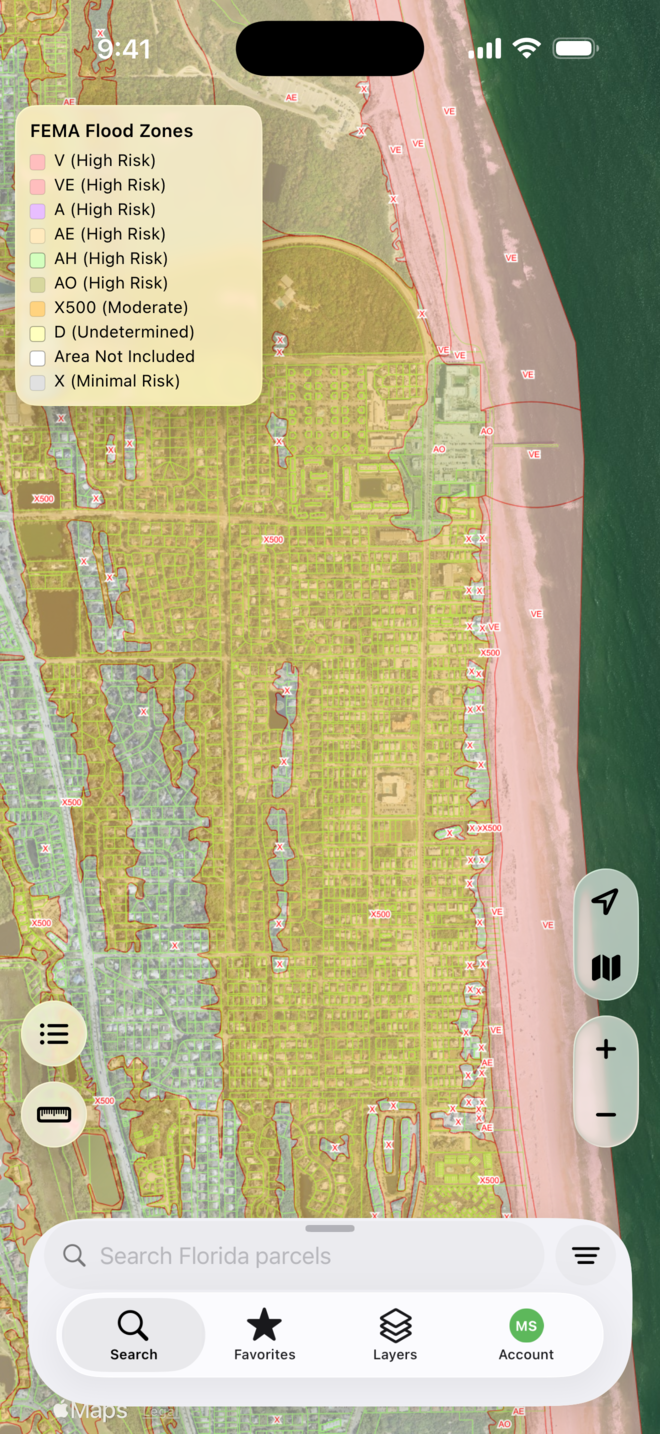
- Turn on FEMA Flood Zones in the Layers tab. If it is not listed, add it from Add layers under Flood & Hazards.
- The legend appears on the map: V and VE (high risk, coastal), A, AE, AH and AO (high risk), X500 (moderate), X (minimal), D (undetermined), and Area Not Included.
- Tap a parcel to read its record alongside the zones; the colors stay on the map while the sheet is open.
- The flood zones layer is part of MapWise Pro.
You should now see the FEMA zones shaded over the aerial with the legend in the corner.
How do I add more layers?
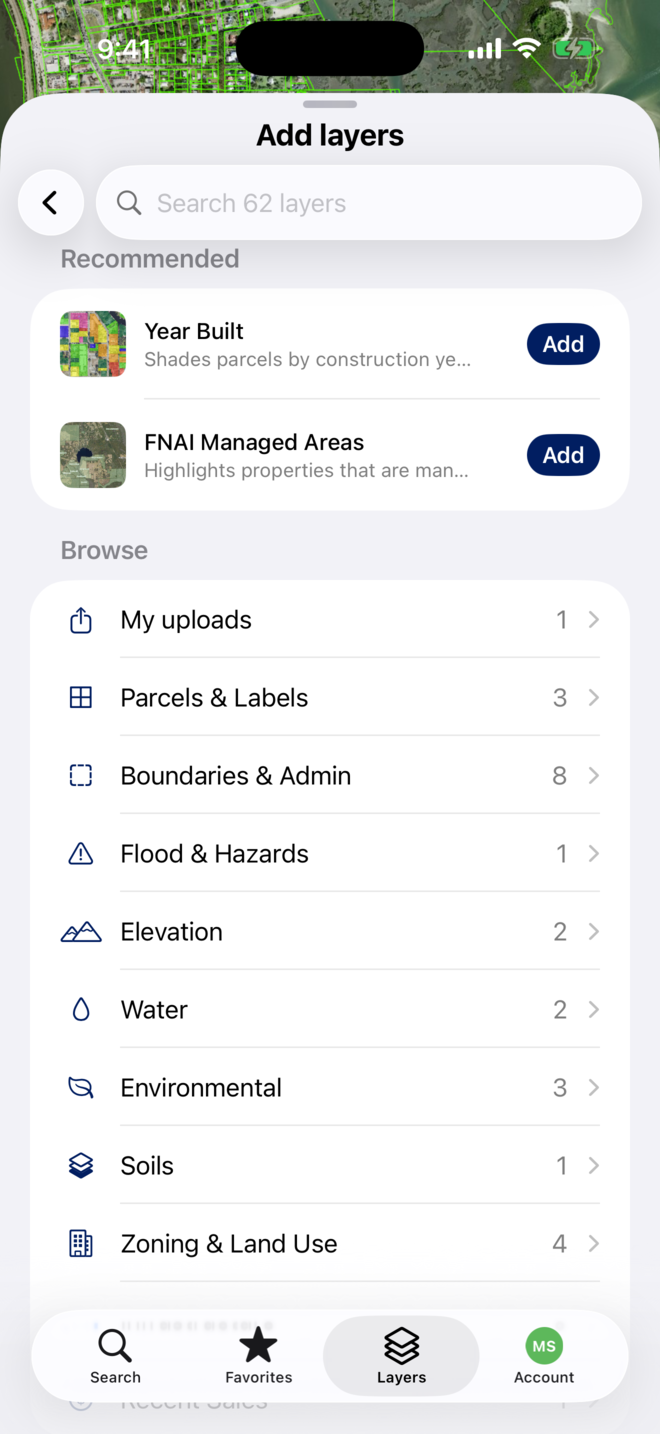
Sixty-two layers ship in the app, grouped the way the web Map Viewer groups them.
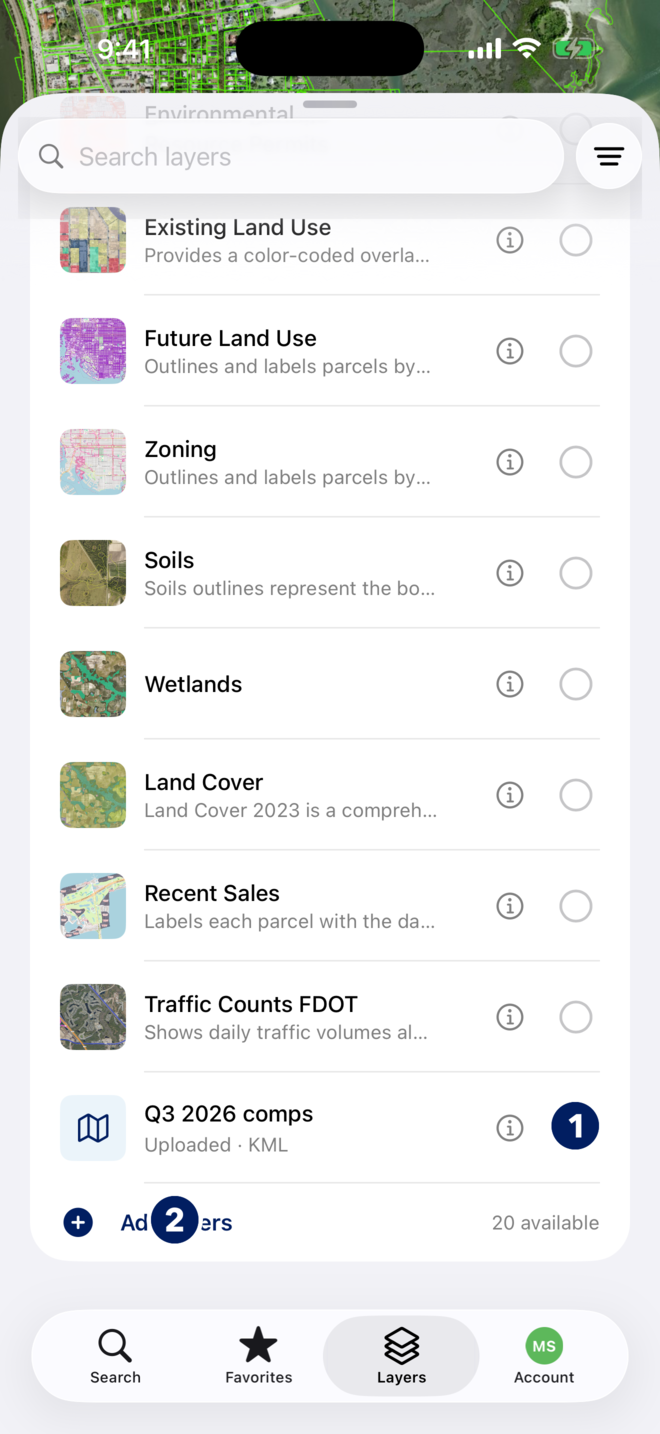
- Scroll to the end of the Layers list and tap Add layers. The number beside it says how many are not yet on your list.
- Browse by group: Parcels & Labels, Boundaries & Admin, Flood & Hazards, Elevation, Water, Environmental, Soils, Zoning & Land Use and more, or type in Search layers.
- Tap Add on a layer. It joins your list, turned on, at the end.
- Some layers are part of MapWise Pro and show a lock until you subscribe.
You should now see the new layer at the bottom of your Layers list and drawn on the map.
How do I use the layers I uploaded on the web?
KML, KMZ and zipped shapefiles you upload in MapWise Explorer or the GIS Map Viewer sync to the app.
- Tap Add layers, then My uploads. Every file you uploaded on mapwise.com is listed.
- Tap Add on the upload. It appears at the end of your Layers list, marked Uploaded with its file type, and turned on.
- Turn it on and off like any other layer. Removing it from the list does not delete the file; that is done on the web.
- To upload a new file, use MapWise Explorer on the web: see Upload Custom Layers.
You should now see your upload, for example a comps file, drawn on the aerial in the app.
Tips
- Layers stack in list order. Move a layer up with Edit if another one hides it.
- Layers you add and the order you set sync to your account, so the web shows the same map.
- Switch the base map to streets when a layer is hard to read over the aerial.
Troubleshooting
- A layer is on but nothing draws.
- Zoom in: many layers draw only past a certain zoom, and tiles take a moment on cellular. Check the layer is above the aerial in the list.
- A layer shows a lock.
- It is part of MapWise Pro. See Account and Subscription.
- My upload is not in the list.
- Open Add layers, then My uploads. If it is not there, the file was uploaded under a different account, or not yet; upload it on mapwise.com and sign in with the same account.
- FEMA Flood Zones is not listed.
- Open Add layers, then Flood & Hazards, and tap Add.