Search and Filter
Find any parcel in Florida by address, owner, parcel ID or place, then narrow an area by acreage, sales, size and value with a live result count.
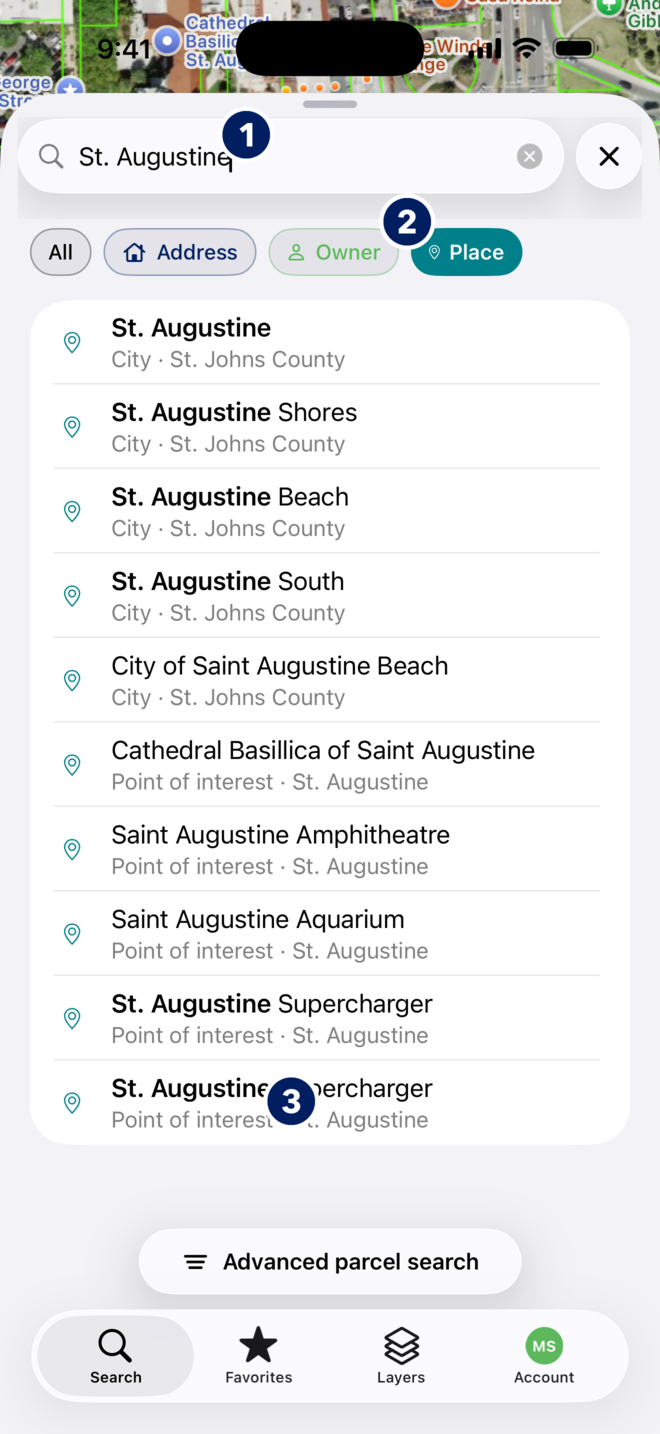
How do I search by address, owner, parcel ID or place?
The search bar at the top of the Search tab takes all four. Results sort themselves into Address, Owner and Place as you type.
- Tap the Search Florida parcels field and start typing. Matches appear after a few characters.
- Use the chips under the field to narrow what you see: All, Address, Owner or Place. Place covers cities, neighborhoods and points of interest, so you can jump to an area first and tap parcels there.
- Tap a result. The map flies to it; a parcel result opens its details sheet, a place result just moves the map.
- For a known parcel, paste or type the parcel ID (PIN) exactly as the county appraiser lists it.
You should now see the map centered on the parcel or place you picked. Owner-name results need a signed-in account with MapWise Pro; without it the app says so instead of listing them.
Try these
| To find | Type |
|---|---|
| An address | 20 Aviles St, St. Augustine |
| An owner | Flagler (part of a name is enough) |
| A parcel ID | 1992400000 (as the county appraiser lists it; this one is St. Johns County) |
| A place | Anastasia Island |
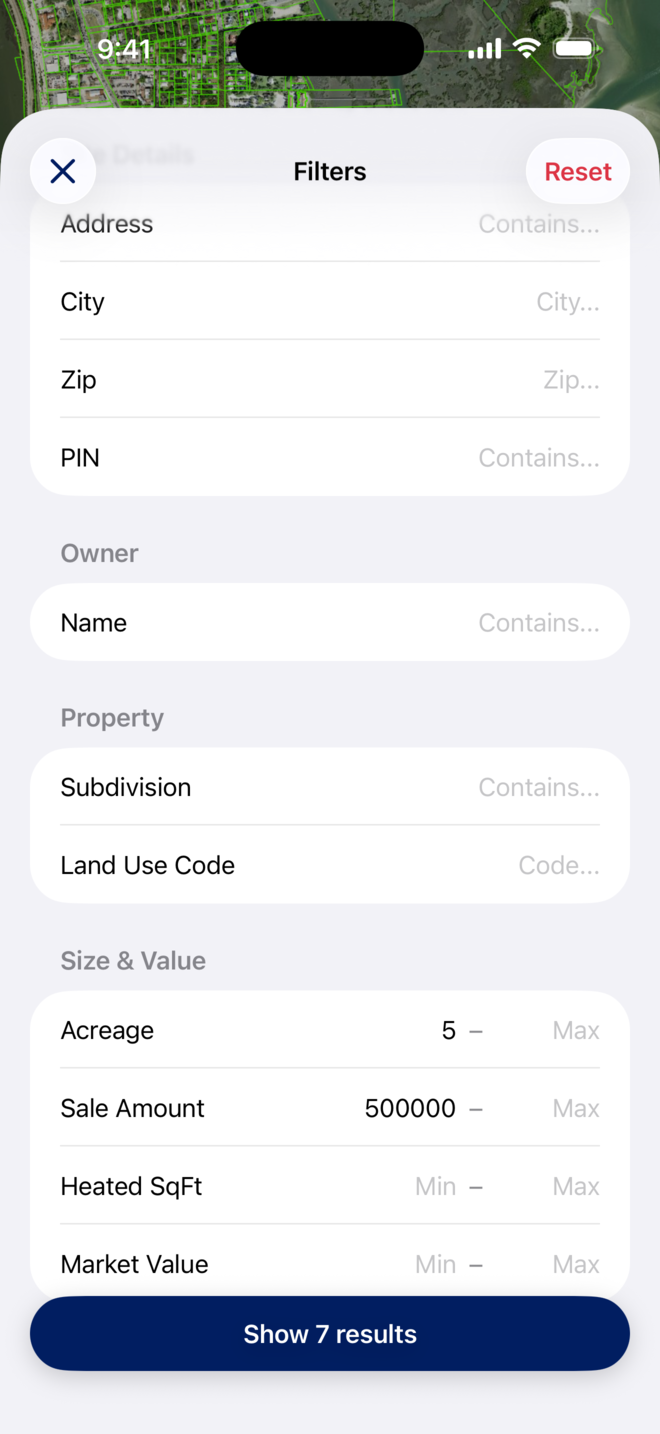
How do I filter by acreage, sales, size and value?
Filters search an area instead of one parcel. Start from a place or the current map view, then add criteria.
- On the Search tab, tap Add filters, or the filter button at the right end of the search bar, or Advanced parcel search under a place result.
- Fill in what you know. Address, City, Zip and PIN match text; Owner Name matches part of a name; Subdivision and Land Use Code narrow by plat or use.
- Under Size & Value, set a minimum and maximum for Acreage, Sale Amount, Heated SqFt and Market Value. Leave a side blank for no limit.
- Watch the button at the bottom: it reads Show N results and updates as you type, so you can widen or tighten before you run anything.
- Tap Show results. Tap Reset at the top to clear every field.
You should now see a results list with your criteria as chips at the top, for example St. Johns, 5+ Acres and Sale $500k+, and a count such as 1,063 Results.
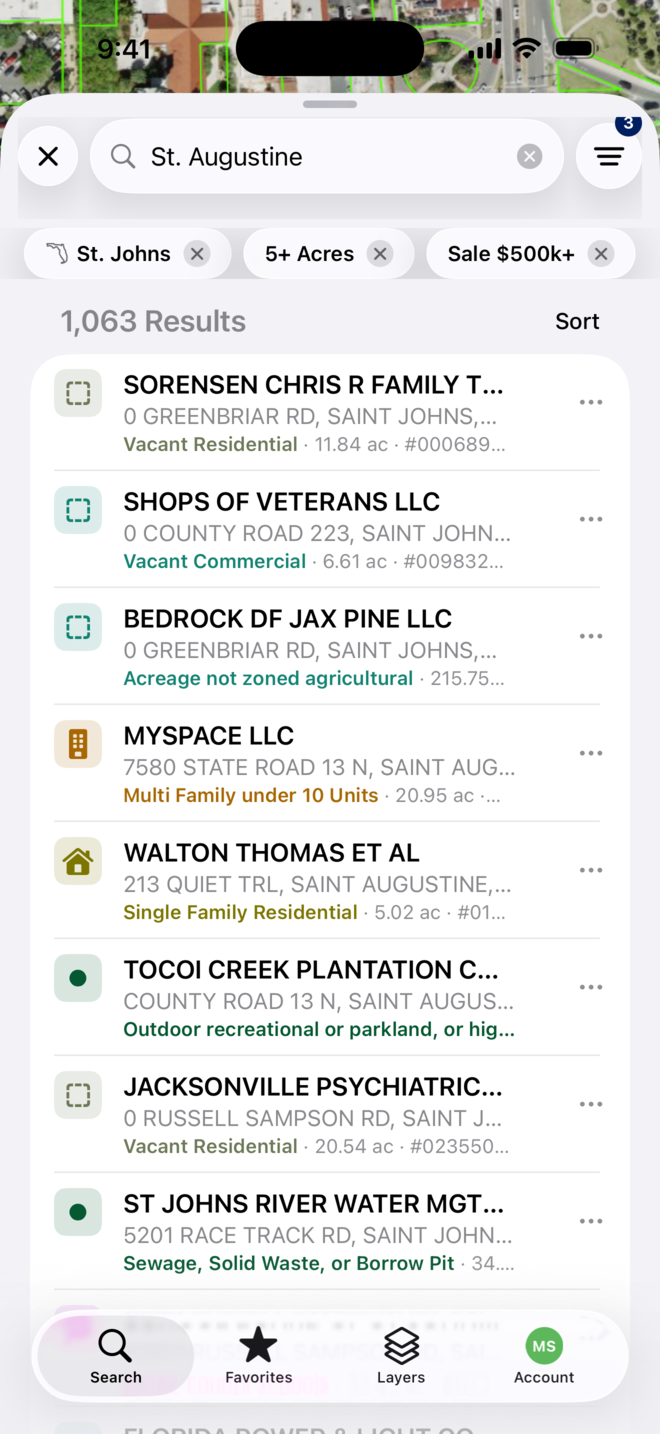
How do I work with the results?
- Each row shows the owner, the site address, the land use, the acreage and the parcel ID. Owner names show with MapWise Pro.
- Tap Sort to order the list, and tap a chip with an x to drop that criterion and re-run.
- Tap a row to open the parcel on the map with its details sheet. Swipe back to return to the list.
- Tap the three dots on a row for quick actions such as saving the parcel to Favorites.
You should now be moving between the list and the map. To read a parcel in full, see Parcels on the Map.
Tips
- Start wide, then add filters. A zero count usually means one criterion is too tight.
- Partial owner names match, so SMITH finds SMITH JOHN and SMITH-JONES MARY alike.
- The same filters exist on the web: see Parcel Search in the GIS Map Viewer for the full desktop form with multi-county search and exports.
Troubleshooting
- Nothing matches as I type.
- Check the spelling and try fewer words: a street name without the number, or a surname alone. A parcel ID must match the county appraiser exactly.
- Owner search shows a message instead of results.
- Owner-name results need a signed-in account with MapWise Pro. See Account and Subscription.
- The Show results button reads 0.
- One filter is too tight. Clear one side of a range, or tap Reset and add filters one at a time.
- A chip will not go away.
- Tap the x on the chip, or Reset in the Filters sheet, and the list re-runs without it.