Measure
Measure distance and area on the aerial by tapping points, read the running total, and clear to start again.
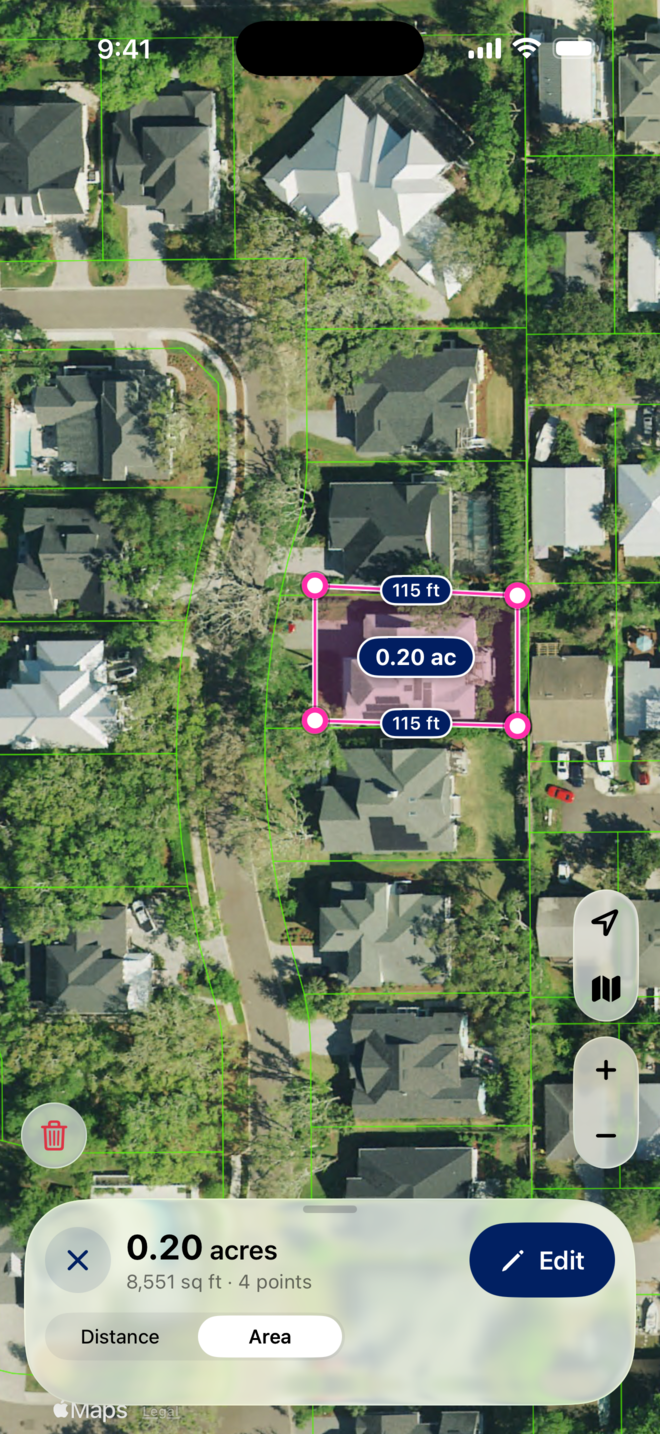
How do I measure distance or area?
- Tap the ruler button on the left edge of the map. The measure bar appears at the bottom.
- Choose Distance or Area in the bar.
- Tap points on the aerial. Each segment shows its length in feet; an area shows its outline shaded, with the acreage and square feet in the bar.
- Pinch to zoom while you work; the points stay where you put them.
You should now see your line or shape on the aerial with the total in the bar, for example 0.20 acres, 8,551 sq ft, 4 points.
How do I adjust or clear a measurement?
- Tap Edit in the bar to move a point: drag its handle to a new spot.
- Tap the trash button to clear the points and start again.
- Tap the x in the bar to leave measuring. The map returns to normal taps.
You should now be back on the map with nothing drawn.
Tips
- Measurements are on-screen only; they are not saved. Take a screenshot if you need to keep one.
- For acreage on record, read the parcel instead: the acres figure sits in the sheet header. See Parcels on the Map.
- On the web the Map Viewer measures the same way: see the taskbar tools.
Troubleshooting
- Taps do not add points.
- Make sure the measure bar is open at the bottom and Distance or Area is chosen. Tap the ruler button again if it closed.
- A point landed in the wrong place.
- Tap Edit and drag its handle, or tap the trash button to start over.
- I need acres, not feet.
- Choose Area. The bar shows acres and square feet; Distance shows feet.