Parcels on the Map
Tap any parcel on the aerial to open its appraiser record, read it in full, save it as a favorite, and share it.
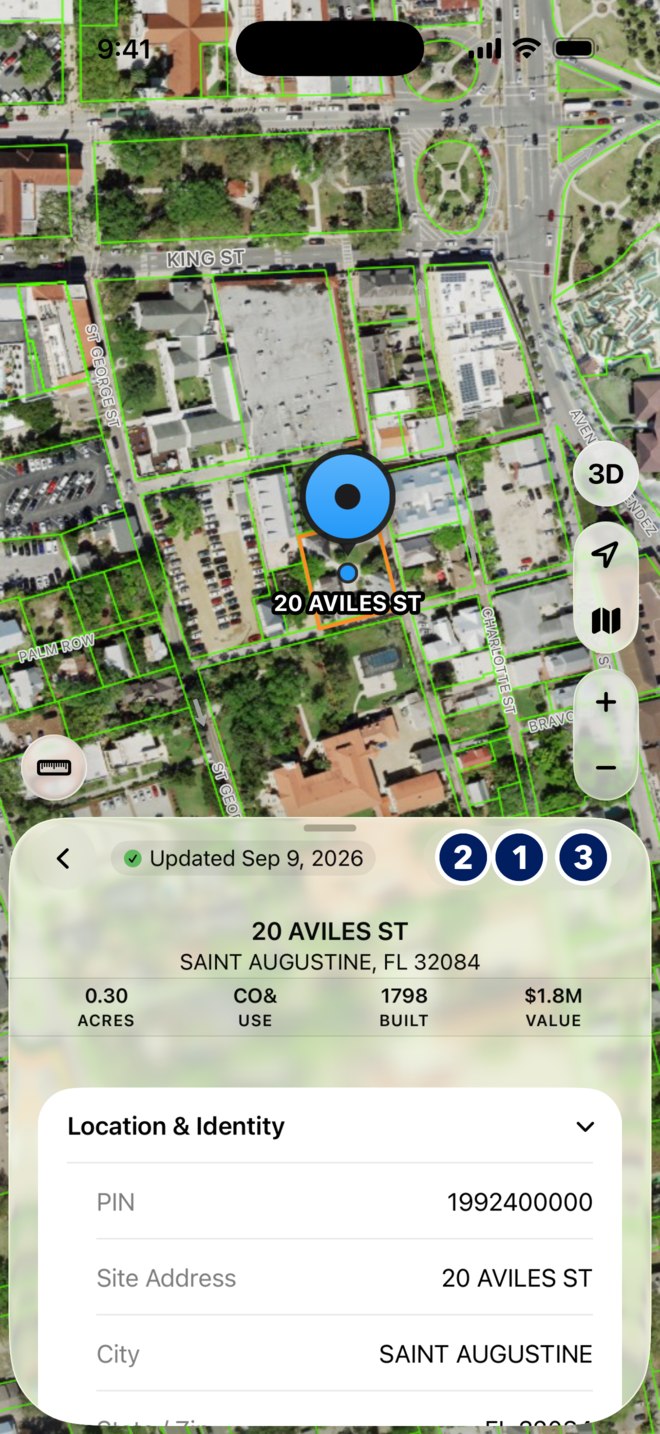
How do I identify a parcel on the map?
Parcel lines draw once you are close enough. Statewide views show the aerial only.
- Zoom in with the plus button or a pinch until the green parcel outlines appear.
- Tap inside a parcel. A pin drops on it and the details sheet rises to half height over the map.
- The sheet header shows the site address, the city, and four figures at a glance: acres, land use, year built and market value.
- Tap another parcel to switch, or tap the back arrow in the sheet header to close it.
You should now see the parcel highlighted on the aerial with its details sheet at half height.
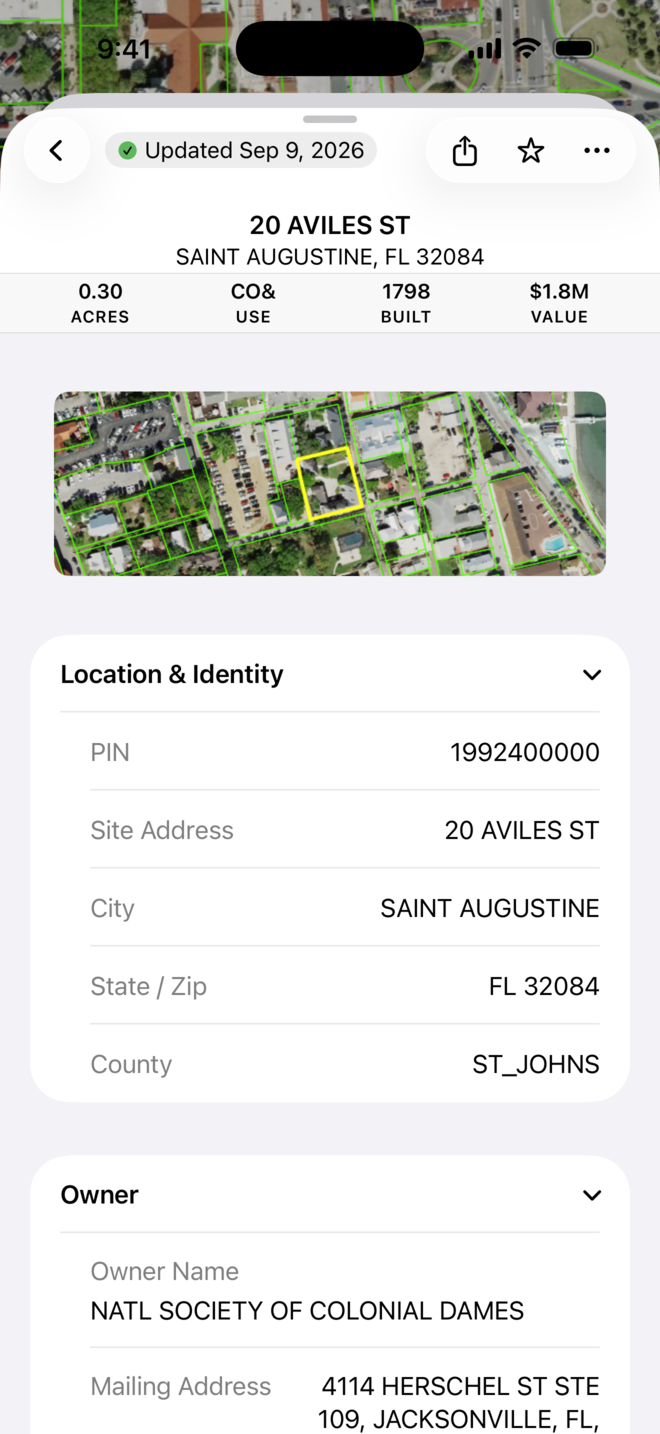
How do I read the whole record?
- Drag the sheet up, or tap the grabber, to open the full record.
- The Updated date under the header tells you when MapWise last refreshed this county from the property appraiser.
- Sections follow the appraiser record: Location & Identity (PIN, site address, city, state and ZIP, county), Owner (owner name and mailing address), then value, sales, building and land details.
- Owner, value and sales fields show a lock until you sign in with MapWise Pro. Everything else is open.
You should now see the full record. Pull the sheet down to return to the map.
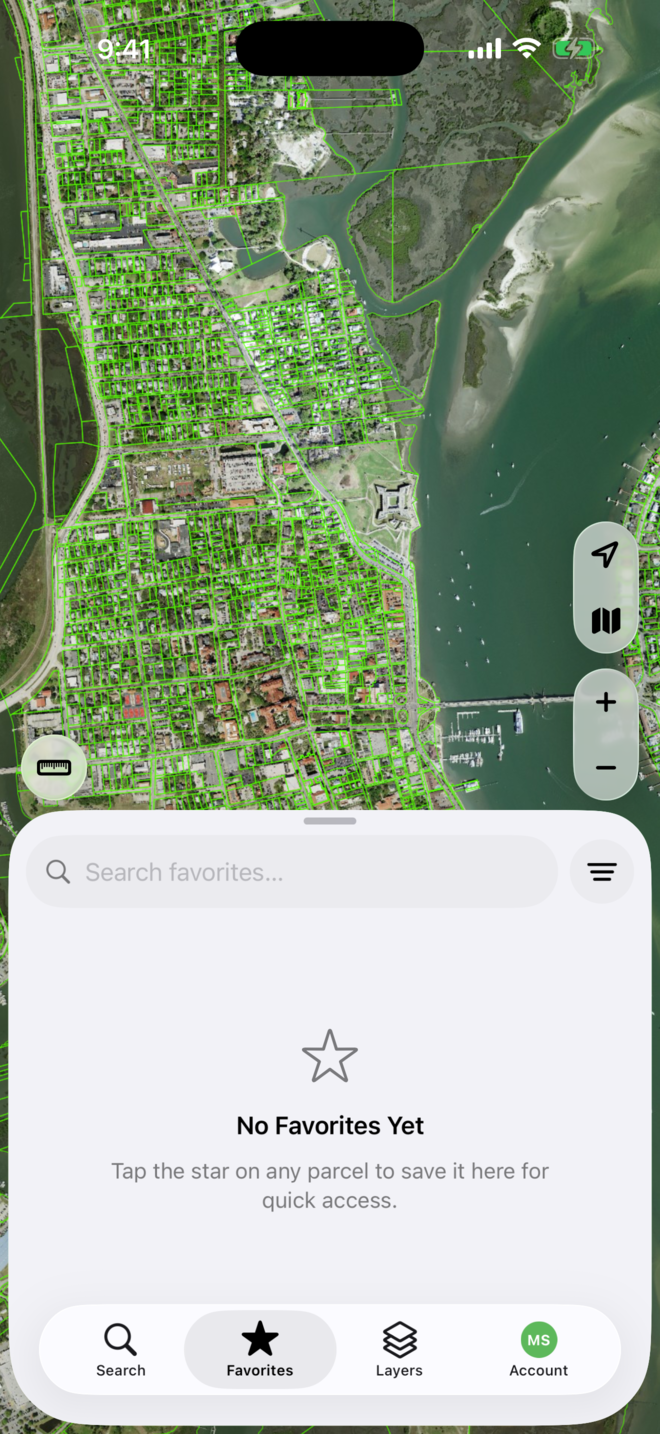
How do I save a favorite?
- With a parcel open, tap the star in the sheet header (callout 1 above). It fills in to show the parcel is saved.
- Open the Favorites tab to see every saved parcel. Tap one to jump back to it.
- Favorites sync with your account, so the list you build in the field is waiting in MapWise Explorer on the web.
- Tap the star again to remove a favorite.
You should now see the parcel under the Favorites tab.
How do I share a parcel?
- With a parcel open, tap the share button in the sheet header (callout 2 above).
- Pick Messages, Mail or any app from the share sheet. The link opens the same parcel on mapwise.com, or in the MapWise app for anyone who has it.
- The three dots (callout 3) hold more actions for the parcel, such as opening it in Apple Maps for directions.
You should now have a link to the parcel in the app you chose.
Tips
- If a tap does nothing, you are zoomed out too far: zoom in until the parcel lines show.
- Turn on Labels under Base maps to see street names on the aerial, or switch to the street base map in dense areas.
- The same record on the web: see Property Details Report.
Troubleshooting
- Tapping the map does nothing.
- Zoom in until the green parcel lines show. If the measure bar is open, close it first; taps add measure points while it is on.
- Owner, value or sales show a lock.
- Those fields are part of MapWise Pro. Sign in with the account that has Pro; see Account and Subscription.
- The record looks out of date.
- The Updated date under the header is when MapWise last refreshed that county, every two weeks in most counties, straight from the property appraiser.
- The star will not save a favorite.
- Favorites belong to your account. Sign in on the Account tab, then tap the star again.